
Factory floor displays
Machine status, readable from across the floor.
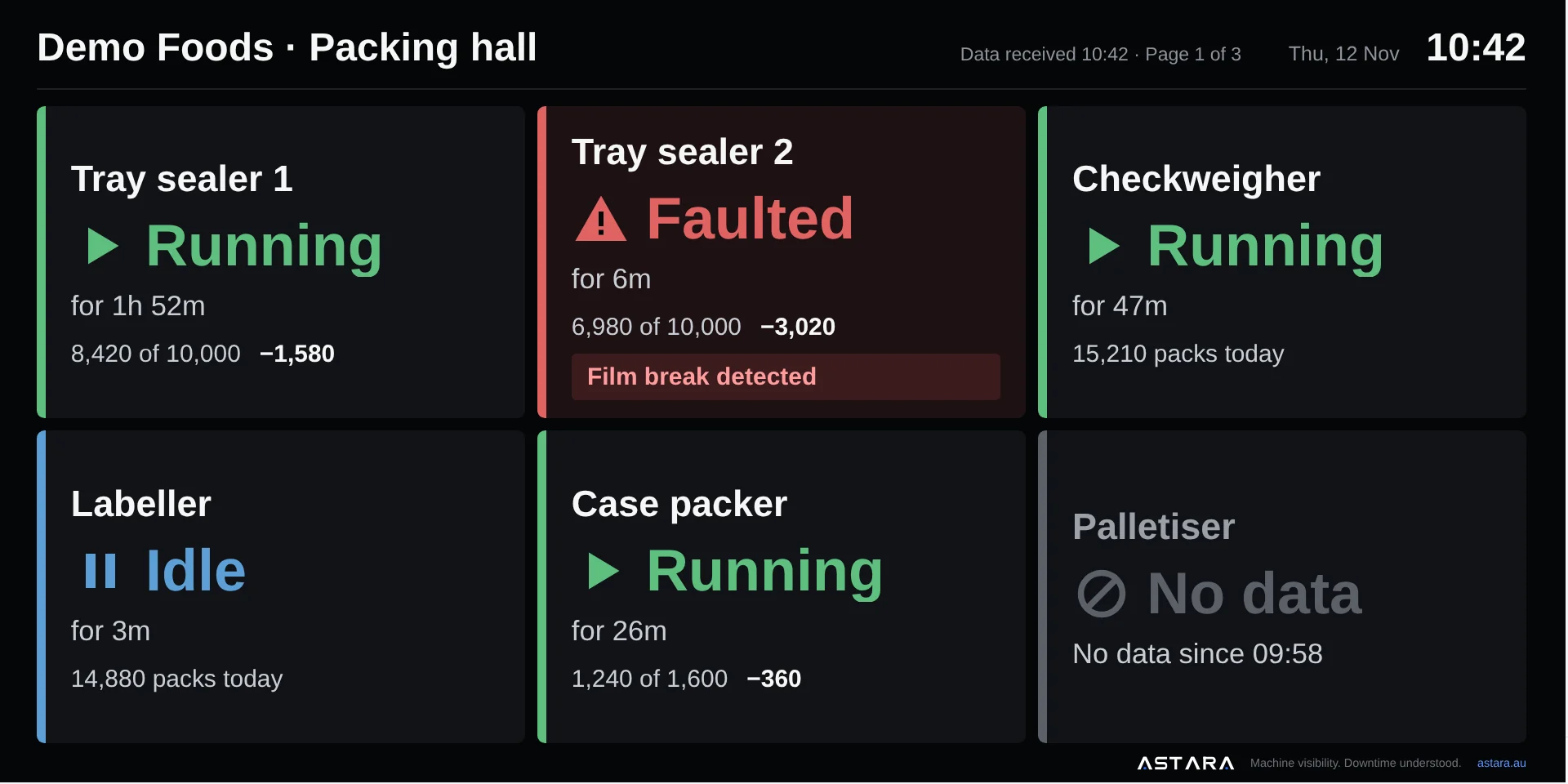
Open astara.au/display on a screen beside the line and pair it with a short code. It shows every machine at the site in large type: what it is doing, for how long, why it stopped and how today's count compares with the plan.
Why a screen on the floor
The people closest to the machine should see it first.
Dashboards in an office or on a phone are read by the people furthest from the line. Operators and leading hands see a stopped machine, but not how long it has been down, how the shift is tracking or which stops still have no reason.
A floor display puts the same evidence Astara records on a TV where the team works. It is read-only and runs unattended, so there is nothing to sign in to, click or keep awake.
What the display shows
Every machine, at a glance.
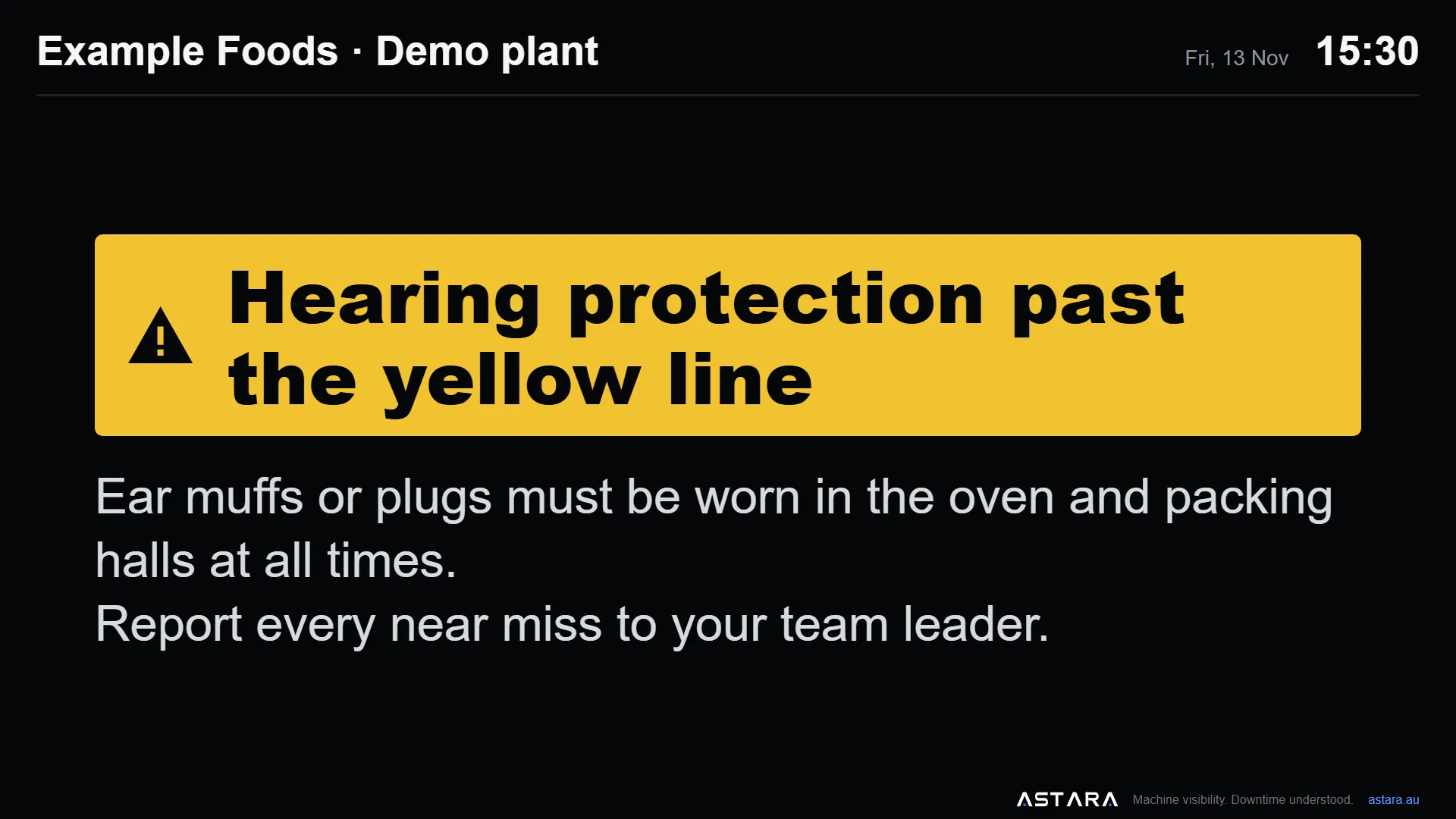
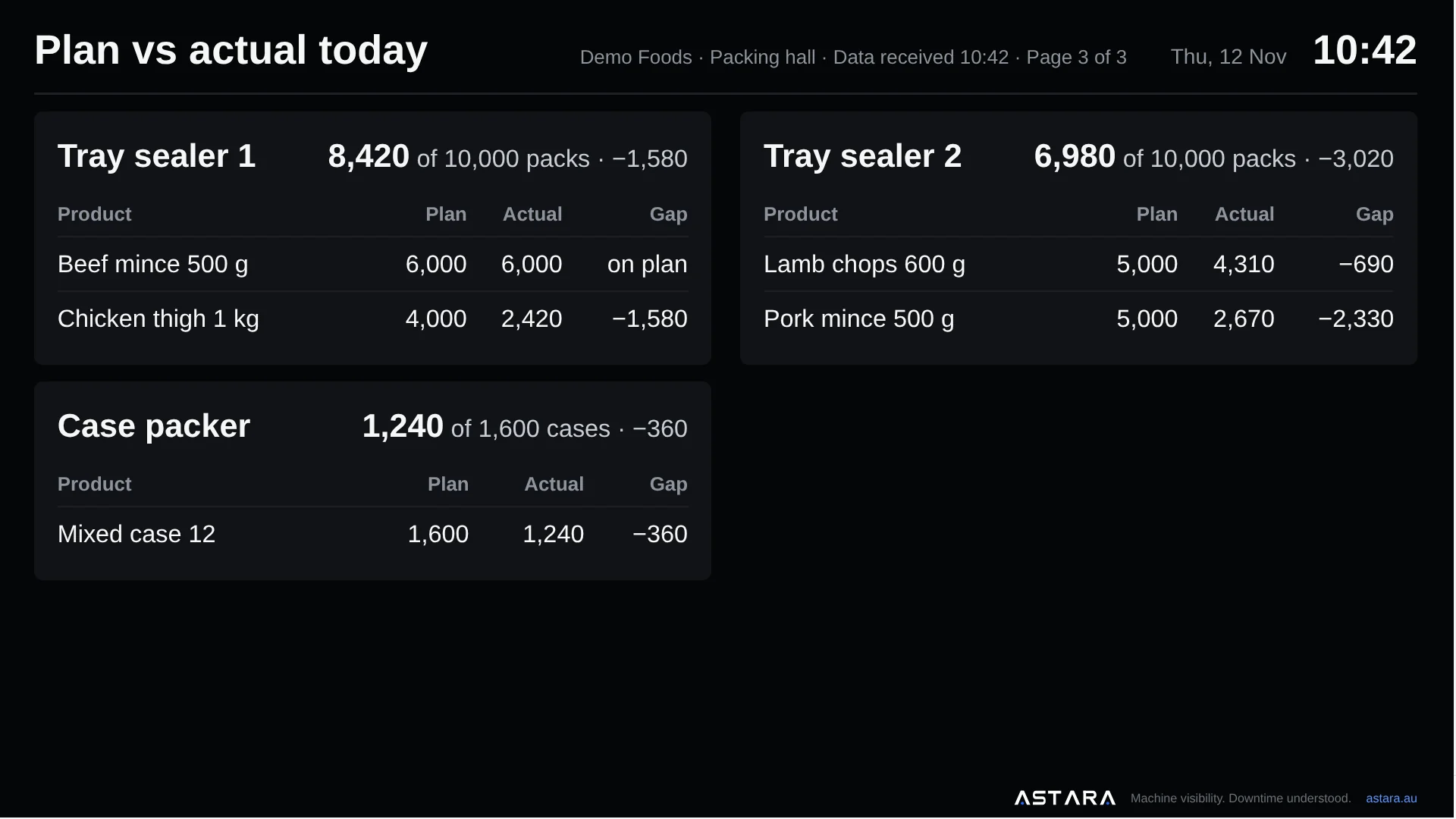
The board turns through its pages on its own, in the order you choose: machine status, today's downtime, plan vs actual and your own messages.
Machine status
One tile per machine, up to 12 on a page: state as a word, icon and colour (never colour alone), time in that state and the active alarm from the machine's own alarm code list.
Today against plan
Each tile shows today's count and, when the machine has a plan for today, the plan and how far ahead or behind it is.
Today's downtime
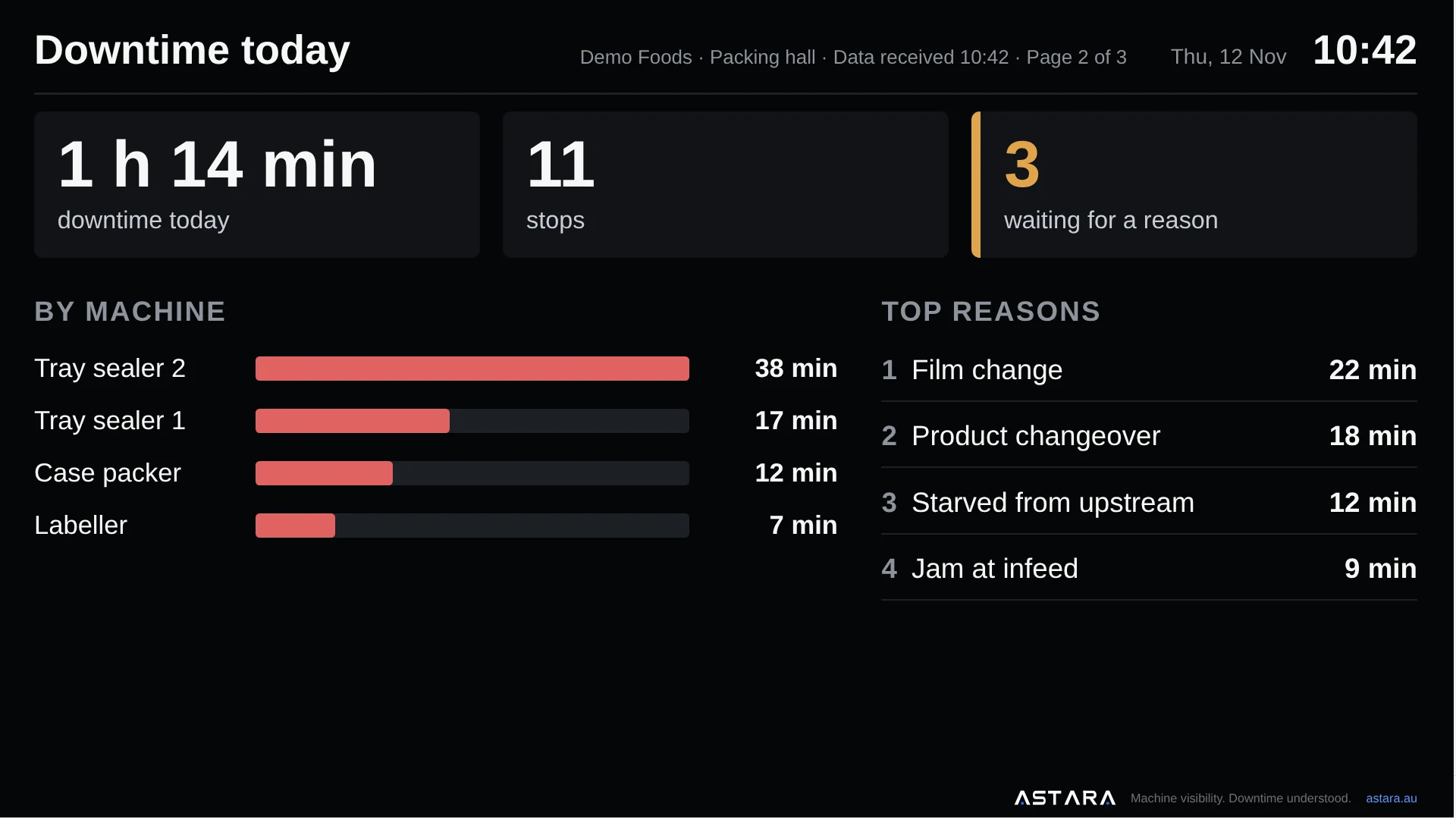
Total downtime and stops, minutes by machine, the top reasons people have assigned, and how many stops are still waiting for a reason.
Plan vs actual
For each machine with a plan today, the plan and actual for each product. The page is skipped on days with no plan.
Your own messages
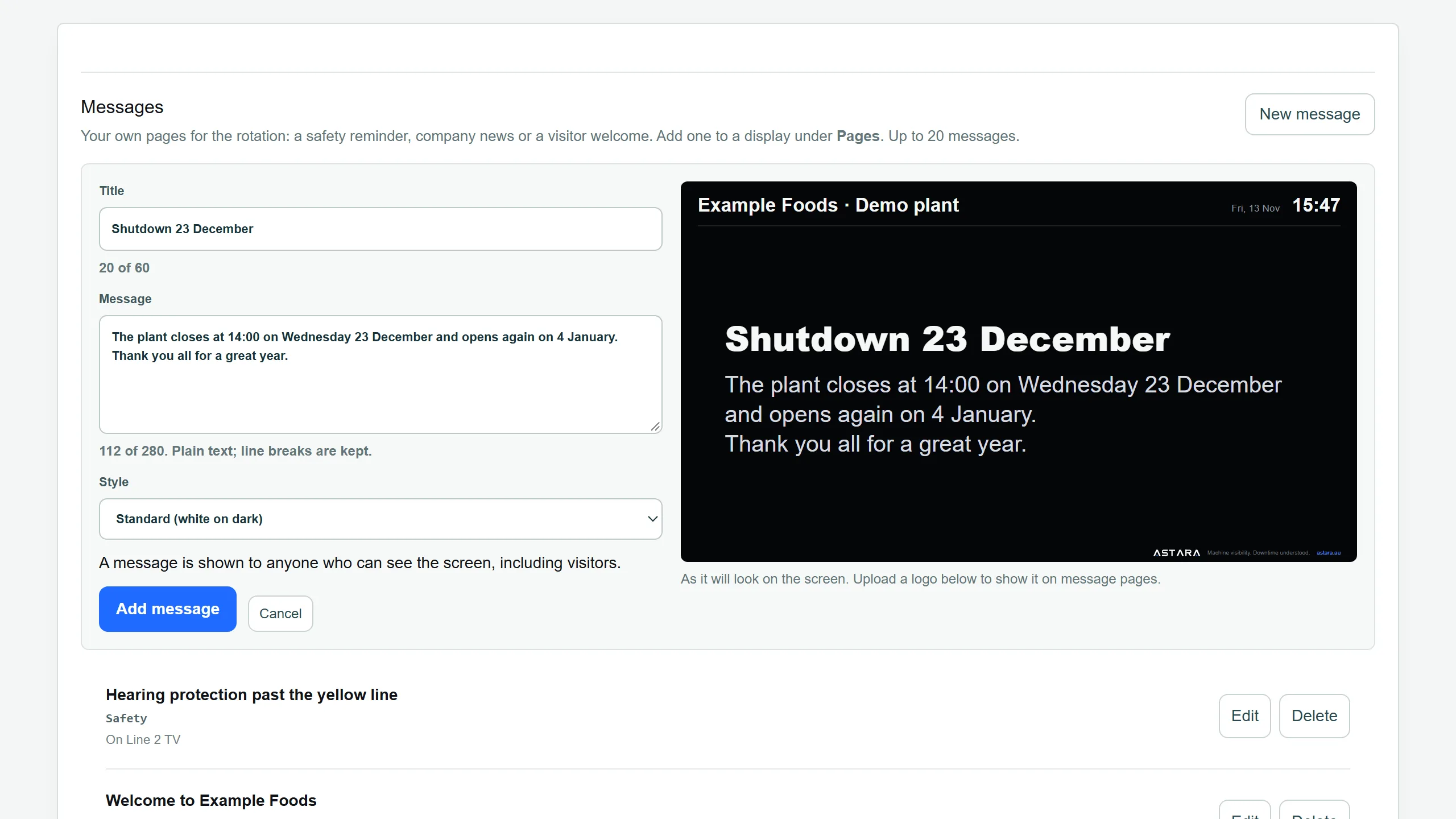
Add a safety reminder, company news or a visitor welcome to the rotation: a title and a short message in large type, in a standard or high-visibility safety style, with your logo. Write it once and use it on any display.
Honest about missing data
A machine that has stopped reporting shows "No data since hh:mm", never running or stopped. If the screen itself loses its connection, a banner says so.
Set per display
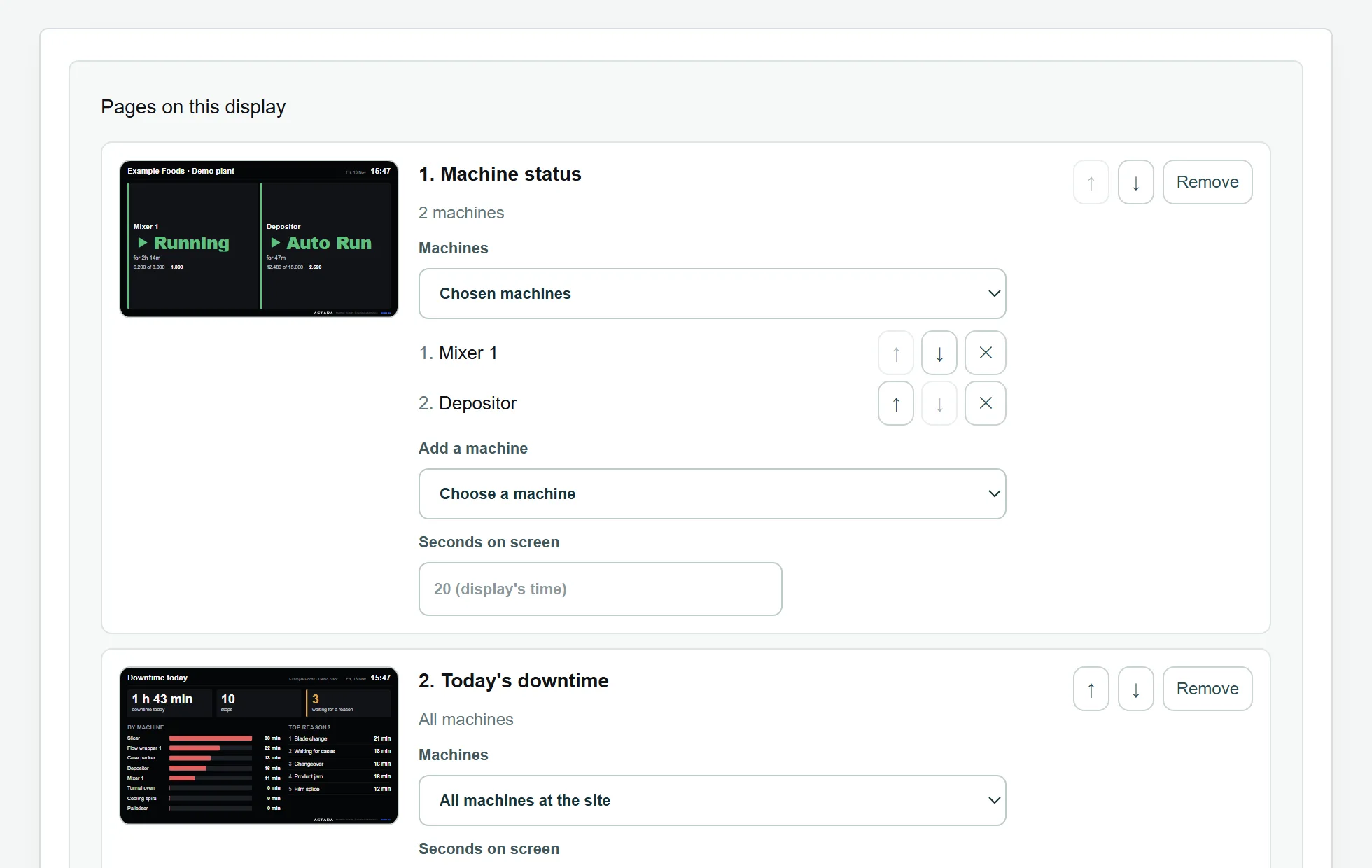
Build each display's rotation from a catalogue of pages, and see each page with demo data or your own site's data before it goes on the TV: which pages, in what order, for all machines or only the ones beside that screen, and how long each stays up (10 to 60 seconds). Copy a rotation from another display. Set the hours it is on; outside them it shows only a dimmed clock.
See it before it's on the TV
Your pages, your order, your messages.
Build each display's rotation in Organisation → Displays, with a picture of every page as the screen will show it. Add your own messages, in a standard or high-visibility safety style.
Paired, not signed in
Set up in minutes. Safe to leave running.
An organisation administrator pairs a screen with the 6-character code it shows. The screen gets read-only access to one site's board and is never signed in as a person.
- Any screen with a current Chrome, Edge, Firefox or Safari
- Machine states every minute; today's figures every 5 minutes
- No personal data from Astara's records, and no buttons
- Rename or revoke a display at any time; revoking stops it at once
- 2 displays per site included in every plan
Common questions
Floor displays, answered.
What hardware do we need?
A screen and any device that runs a current version of Chrome, Edge, Firefox or Safari on it, such as a small PC, a stick computer or a laptop, connected to the internet. Astara doesn't sell or specify display hardware. Smart-TV built-in browsers may work but are not supported, because many run old browser engines.
How do we pair a screen?
Open astara.au/display on the screen and make the browser full screen. It shows a 6-character code. An organisation administrator enters that code in Organisation → Displays → Add display, chooses the site and names the display. Within a few seconds the screen shows the board. Pairing from the same computer? Click the code or press C to copy it.
How up to date is it?
Machine states refresh every minute, so a change can take up to a minute to appear; today's counts, plan and downtime refresh every 5 minutes. Time in state keeps counting on the screen between refreshes. Anyone who needs to act within seconds should use the workspace.
Is it secure to leave on the floor?
The display can only show the one site it is paired to and can't change anything. It shows no personal data from Astara's records: no names of users, no accounts and nothing typed into the screen. Message pages show only what your administrators write. Revoking it in Organisation → Displays sends it back to a pairing code within a minute.
How many displays can we have?
Every plan includes 2 displays per site. Revoking a display frees its place.
Features
More from Astara
How it works
From a PLC signal to a decision-ready shift.
Read moreThe workspace
Dashboards, downtime reasons, plans and reports.
Read moreDowntime tracking
See where operating time went, and why.
Read moreMachine monitoring
Live state and production across every site.
Read moreOEE
The availability and performance evidence behind OEE.
Read morePLC data collection
Read-only OPC UA collection at the edge.
Read moreFood & packaging
Production visibility for food and packaging lines.
Read moreStart with one machine. Make the next shift easier to understand.
Bring a machine, a spreadsheet or simply a question. We'll show you what a clearer operational story can look like.
Book a demo